Are you a dedicated gamer juggling life work and family wondering how to reclaim valuable storage space on your devices without losing cherished memories or game progress? In 2026 with 87 percent of US gamers regularly diving into virtual worlds for an average of 10 plus hours weekly and mobile gaming dominating the landscape managing your digital library is more crucial than ever. This comprehensive guide on how to delete a game app across all major platforms from mobile phones to PCs and consoles will walk you through the precise steps. We address common pain points like freeing up storage improving device performance and understanding how deletion impacts your save data and game licenses. Discover expert tips for efficient game management ensuring your gaming experience remains smooth and enjoyable without unwanted digital clutter. Whether you are looking to declutter your phone optimize your PC for peak performance or simply make room for the next big title this resource provides actionable solutions. You will learn to delete game apps effectively keep your devices running optimally and maintain control over your gaming universe.
How do I completely remove a game from my phone? What happens when I delete a game on my console? Will deleting a PC game erase my save files? Can I uninstall games from Steam to free up space? Is there a way to permanently delete game data from cloud storage?How can I free up space by deleting old game apps on my Android phone?
To free up space on your Android, long-press the game app icon on your home screen or app drawer. Drag it to the 'Uninstall' option that appears at the top. Alternatively, go to Settings > Apps > [Game App] > Uninstall. This removes the main game files and associated data, instantly reclaiming storage for new games or photos. It’s a quick win for device performance.
I want to get rid of a game on my iPhone but keep my progress. How do I delete the app without losing saves?
On iPhone, deleting the app often removes local data. To keep progress, ensure the game uses iCloud or its own cloud save system (linked to Game Center or an in-game account). If it does, you can delete the app by long-pressing its icon and tapping 'Remove App' > 'Delete App'. Your save data should remain in the cloud, syncing back when you reinstall the game later.
What's the best way to uninstall a large game from my Windows PC permanently?
The best way is through Windows Settings. Go to Start > Settings > Apps > Apps & features. Locate the game, click 'Uninstall', and follow the prompts. For games from platforms like Steam or Epic, use their respective launchers' uninstall functions. This ensures a cleaner removal of core files and registry entries, crucial for reclaiming large amounts of storage space.
Can I delete a PlayStation game without affecting my trophies or linked account data?
Yes, deleting a game from your PlayStation console (PS4/PS5) only removes the local installation files, not your trophies or account-linked data. Your trophies are tied to your PlayStation Network account, and game licenses allow you to re-download purchased titles anytime. Your save data is typically managed separately, often stored in the cloud if you have PlayStation Plus, making it safe to delete the game itself.
How do I know if deleting a game app will also delete my in-app purchases?
Deleting a game app does not delete your in-app purchases (IAPs) themselves. IAPs are tied to your account (Apple ID, Google Play, Xbox, PlayStation Network, Steam) within the game's ecosystem. When you reinstall the game and log in with the same account, your purchases typically restore automatically. This is a common practice ensuring you don't lose value from your investment.
Why would I want to delete a game app that I might want to play again later?
Many gamers delete apps temporarily to free up storage for new titles, improve device performance, or take a break from an addictive game. With robust cloud saving systems across most platforms today, you can delete a game, knowing your progress is safe in the cloud and you can easily re-download it and pick up where you left off whenever you're ready to play again. It's smart storage management.
Are there any common issues or errors when trying to delete game apps, and how can I fix them?
Occasionally, games might refuse to delete due to corrupted files, background processes, or system errors. On PC, try restarting your computer, closing all related programs, or using a third-party uninstaller. On mobile, clear the app's cache before attempting deletion or restart your device. If all else fails, a factory reset is a last resort, but always back up critical data first.
Hey fellow gamers! Ever felt that familiar digital squeeze? Your phone or PC storage is maxed out, games are loading slower than a dial-up modem, or maybe you just need a serious detox from that one addictive title that's eating into your family time. You're not alone. In 2026, with an impressive 87 percent of US gamers regularly dedicating an average of 10 plus hours weekly to their passion, and mobile gaming continuing its meteoric rise, managing your digital space is more critical than ever. We all love our games, from the latest social co-op adventures on Discord to the cozy single-player escapes, but sometimes, it's time to let go. This isn't just about freeing up gigabytes; it's about optimizing your device's performance, reclaiming precious time, and maintaining a healthy balance between your virtual worlds and real life responsibilities.
This comprehensive guide is built for you: the busy adult gamer balancing a job, family, and that precious gaming unwinding time. We know you value efficiency, performance, and clear solutions. That’s why we’re diving deep into exactly how to delete a game app across all your favorite platforms – iOS, Android, PC, PlayStation, Xbox, and Nintendo Switch. We’ll tackle common dilemmas, from understanding what happens to your save data to ensuring you truly remove every trace of a game. By the end, you’ll be an expert at decluttering your digital life, ensuring your setup runs smoother, and making informed decisions about your gaming library.
Why Should I Consider Deleting Game Apps Anyway?
There are several compelling reasons for a gamer to know how to delete a game app effectively. Firstly, storage space. Modern games are massive, and keeping too many installed can quickly fill your device, leading to frustrating "storage full" notifications and preventing new installations. Secondly, performance. A cluttered device, especially on older hardware, can suffer from slower load times, reduced frame rates, and overall system sluggishness. Deleting unused apps frees up system resources, potentially boosting performance. Lastly, digital well-being. Some games, while fun, can become time sinks or even contribute to burnout. Consciously deleting them can help you manage your gaming habits, focus on titles you genuinely enjoy, and maintain a healthier balance with life outside the screen. It's about taking control of your digital environment.
How Do I Delete a Game App on Mobile Devices (iOS & Android)?
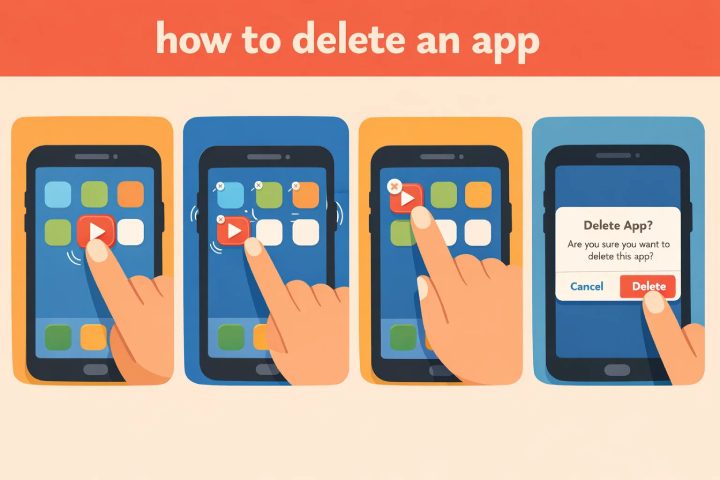
Deleting a game app from your smartphone or tablet is generally straightforward, but the exact steps vary slightly between iOS and Android. For iOS devices (iPhone, iPad), simply press and hold the game app icon on your home screen or in the App Library. After a moment, the icons will jiggle, and an "X" or "Remove App" option will appear. Tap it, then confirm "Delete App" when prompted. This removes the app and its associated data from your device. For Android devices, the process is similar: long-press the app icon. An option like "Uninstall" or an "i" icon for App Info will appear. Drag the app to "Uninstall" at the top of the screen or tap the App Info icon and select "Uninstall." Confirm your choice. This process typically removes the game's core files, though some cached data might remain in your device's system folders, which can be cleared via your device settings if needed.
What Are the Steps to Uninstall a Game from My PC (Windows, Steam, Epic Games)?
Uninstalling a game on PC depends on how it was installed. For Windows applications (non-store games), navigate to "Settings" > "Apps" > "Apps & features." Find the game in the list, click it, and select "Uninstall." Follow any on-screen prompts. For Steam games, open your Steam client, go to "Library," right-click the game you wish to remove, hover over "Manage," and select "Uninstall." Confirm the action. Steam will handle the removal of game files and registry entries. Similarly, for Epic Games Launcher titles, open the launcher, go to your "Library," click the three dots next to the game title, and select "Uninstall." These methods ensure a clean removal of the game's primary installation files, freeing up significant disk space. Remember to also check for any remaining user-created content or configuration files in your Documents or AppData folders if you want a truly complete wipe.
How Do I Remove Games from My Console (PlayStation, Xbox, Nintendo Switch)?
Clearing games from your console helps with storage and can improve system responsiveness. On PlayStation consoles (PS5, PS4), go to your "Games Home" screen, highlight the game you want to delete, press the "Options" button on your controller, and select "Delete." Confirm the deletion. On Xbox consoles (Xbox Series X/S, Xbox One), go to "My games & apps," highlight the game, press the "Menu" button, select "Uninstall," and then "Uninstall all." For Nintendo Switch, select the game icon on the HOME Menu, press the "+" or "-" button, select "Manage Software," then "Delete Software." Be aware that deleting software on Switch only removes the game itself, not save data, which is typically stored separately on the console. Console uninstallation processes are usually very clean, removing all game-specific files from the hard drive.
Does Deleting a Game App Also Remove My Save Data and Progress?
This is a critical question for any gamer, and the answer varies by platform and sometimes by game. For mobile games, deleting the app often deletes local save data unless the game explicitly uses cloud saving linked to your Google Play or Apple ID. Many modern mobile games do this automatically. On PCs, uninstalling a game typically removes the core game files but might leave user-specific data like save files, screenshots, or configuration files in your "Documents" folder or "AppData" directory. You usually need to manually delete these if you want a complete wipe. On consoles, like the Nintendo Switch, deleting the software does not delete your save data, which is stored separately. PlayStation and Xbox generally offer options to manage save data independently, either locally or in the cloud. It's always best practice to check your specific game and platform settings if preserving or completely eradicating save data is a priority.
How Can I Delete Game Data Permanently from Cloud Storage?
Deleting game data from the cloud requires a slightly different approach as it’s tied to your platform or game accounts. For PlayStation Plus cloud saves, go to "Settings" > "Saved Data and Game/App Settings" > "Saved Data (PS5)" or "Application Saved Data Management (PS4)," then "Cloud Storage." You can then select data to delete. On Xbox, cloud saves are deeply integrated and automatically managed; to remove them, you typically need to delete the game and then specifically choose to "Delete from everywhere" when prompted, though direct manual cloud save deletion can be trickier. For Steam, go to "Steam" > "Settings" > "Cloud" and manage which games use Steam Cloud, but direct deletion of individual game saves from the cloud might require disabling cloud sync for that game and then launching it to potentially overwrite the cloud data. Many mobile games link to Google Play Games or Apple Game Center; you might need to visit those service settings to manage or delete game data linked to your profile. Always exercise caution when deleting cloud data, as it is often irreversible.
What is the Difference Between Uninstalling and Deleting Game Files?
While often used interchangeably, "uninstalling" and "deleting game files" can have slightly different implications, especially on PC. Uninstalling refers to using a system's or platform's designated removal tool (e.g., Windows "Apps & features," Steam's "Uninstall" option). This method is designed to be clean: it removes the main program files, unregisters components from the operating system, and often attempts to remove associated data. It's the recommended way to remove software. Deleting game files, on the other hand, often implies manually navigating to the game's installation folder and simply sending it to the Recycle Bin. While this removes the bulk of the files, it can leave behind registry entries, configuration files, and save data, potentially causing issues or clutter. Always opt for the official uninstall process to ensure a thorough and clean removal, especially for complex modern games that integrate deeply with your system.
Can I Re-download a Deleted Game and Get My Progress Back?
Absolutely, in most cases, especially if your save data is backed up. If you deleted a digital game that you purchased, you can almost always re-download it from your platform's store or library (e.g., Steam library, PlayStation Store "Purchased" section). Your ownership is tied to your account, not the local installation. Regarding progress, if your game utilizes cloud saves (which most modern games on PC, console, and mobile do), then re-downloading the game and signing into your account will automatically sync your previous progress. This is a huge benefit for busy gamers, as it allows for flexible storage management without fear of losing hard-earned achievements or storyline progression. Just ensure cloud saving was enabled for that game before you deleted it. If only local saves were used and you performed a complete wipe of all local data, then your progress might be lost.
What Are Best Practices for Managing My Game Library Efficiently?
Maintaining an organized and efficient game library is key for any serious gamer, especially with the constant influx of new titles and sales. Firstly, regularly review your installed games. If you haven't played a game in six months or a year, consider if it's truly essential. Secondly, utilize cloud saves. Always ensure your games are configured to save progress to the cloud whenever possible. This gives you peace of mind when deleting local files. Thirdly, prioritize your storage. Keep your most frequently played games on faster drives (SSDs for PC, internal console storage), and move less critical games to slower drives or external storage if possible. Fourthly, consider game streaming services like Xbox Game Pass Ultimate or GeForce Now as an alternative to local installations for some titles, reducing your storage footprint. Finally, always perform official uninstalls to avoid leftover files and potential system clutter.
Are There Any Tools or Apps That Help Manage Game Deletions?
While operating systems and gaming platforms provide native uninstall tools, some third-party utilities can offer enhanced game management and deletion capabilities, particularly on PC. Tools like Revo Uninstaller (Windows) go beyond standard uninstalls by scanning for and removing leftover registry entries, files, and folders that native uninstallers might miss. This ensures a cleaner system. Storage analysis tools built into Windows or available as third-party apps (e.g., WinDirStat, WizTree) can visually show you which games or files are consuming the most space, helping you make informed decisions about what to remove. For mobile, the native storage managers in iOS and Android are quite robust, often highlighting apps that haven't been used in a while. While dedicated "game deletion apps" are less common due to platform restrictions, leveraging system tools and reputable uninstaller utilities can significantly streamline your game library management.
Mastering how to delete a game app isn't just about freeing up space; it's about taking control of your digital life, optimizing your gaming experience, and ensuring your devices run smoothly. From quick mobile taps to thorough PC uninstalls and console removals, understanding these processes empowers you to keep your systems lean, responsive, and ready for the next adventure. Remember, smart storage management, leveraging cloud saves, and regular digital decluttering are hallmarks of a seasoned gamer in 2026. Keep your favorite titles close and shed the digital weight that slows you down.
What's your biggest gaming challenge when it comes to managing your digital library? Comment below and share your tips!
Is it safe to delete game apps from my device?
Yes, it's completely safe. Deleting a game app through the official channels (like your OS settings or platform launcher) is designed to remove the software without harming your operating system or other applications. It frees up resources and cleans out unnecessary files.
Will deleting a game app immediately free up storage space?
Yes, absolutely. Once a game app is uninstalled or deleted, the space it occupied on your device's storage is immediately made available. This can be a quick fix for "low storage" warnings, especially with today's massive game file sizes.
Can I delete pre-installed games or bloatware from my phone or PC?
It depends. Some pre-installed apps (bloatware) on phones or PCs can be uninstalled like regular apps. Others, particularly system-critical ones, might only allow you to "disable" them, preventing them from running but not fully removing their files. Consult your device's manual for specific limitations.
How do I delete game apps from my purchase history on app stores?
Generally, you cannot permanently delete a game from your purchase history on platforms like Steam, PlayStation Store, or mobile app stores. You can often hide them, preventing them from showing up in your "ready to install" lists, but the record of purchase remains tied to your account for future re-downloads.
What if a game won't delete or uninstall properly on my PC?
If a PC game won't uninstall, first try restarting your computer. If that fails, use a third-party uninstaller tool like Revo Uninstaller, which can force-remove stubborn programs and clean up leftover files. You might also need to check the game's official forums for specific uninstallation troubleshooting steps.
Free up significant device storage space. Improve overall system and game performance. Understand deletion methods for iOS Android PC PlayStation Xbox and Nintendo Switch. Learn how deleting affects local and cloud save data. Discover best practices for permanent game and data removal. Reclaim digital well-being and time management.
35

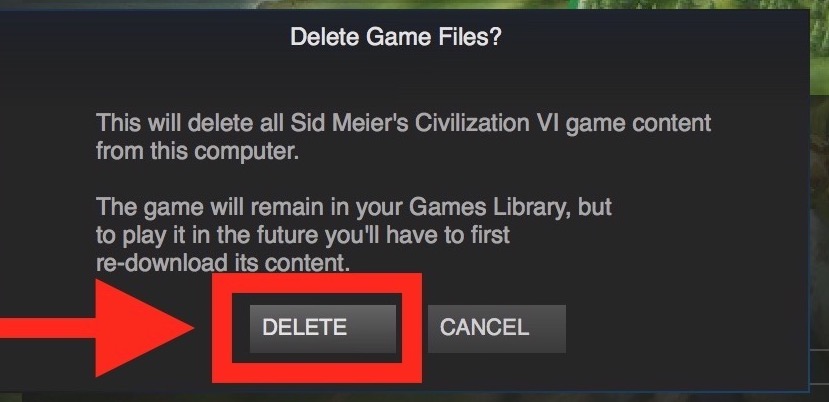


How To Delete Games On Mac Free Up Space In 2026 Allthings How How To Uninstall Microsoft Store Games Image 1 1 759x609 . How To Delete Uninstall Games On PS5 2026 YouTube . How To Delete Games On Mac Free Up Space In 2026 Howto Delete Steam Games . Oculus Quest 2 How To Delete Games Apps YouTube . How To Delete A Game On Roblox 2026 Easy Method YouTube


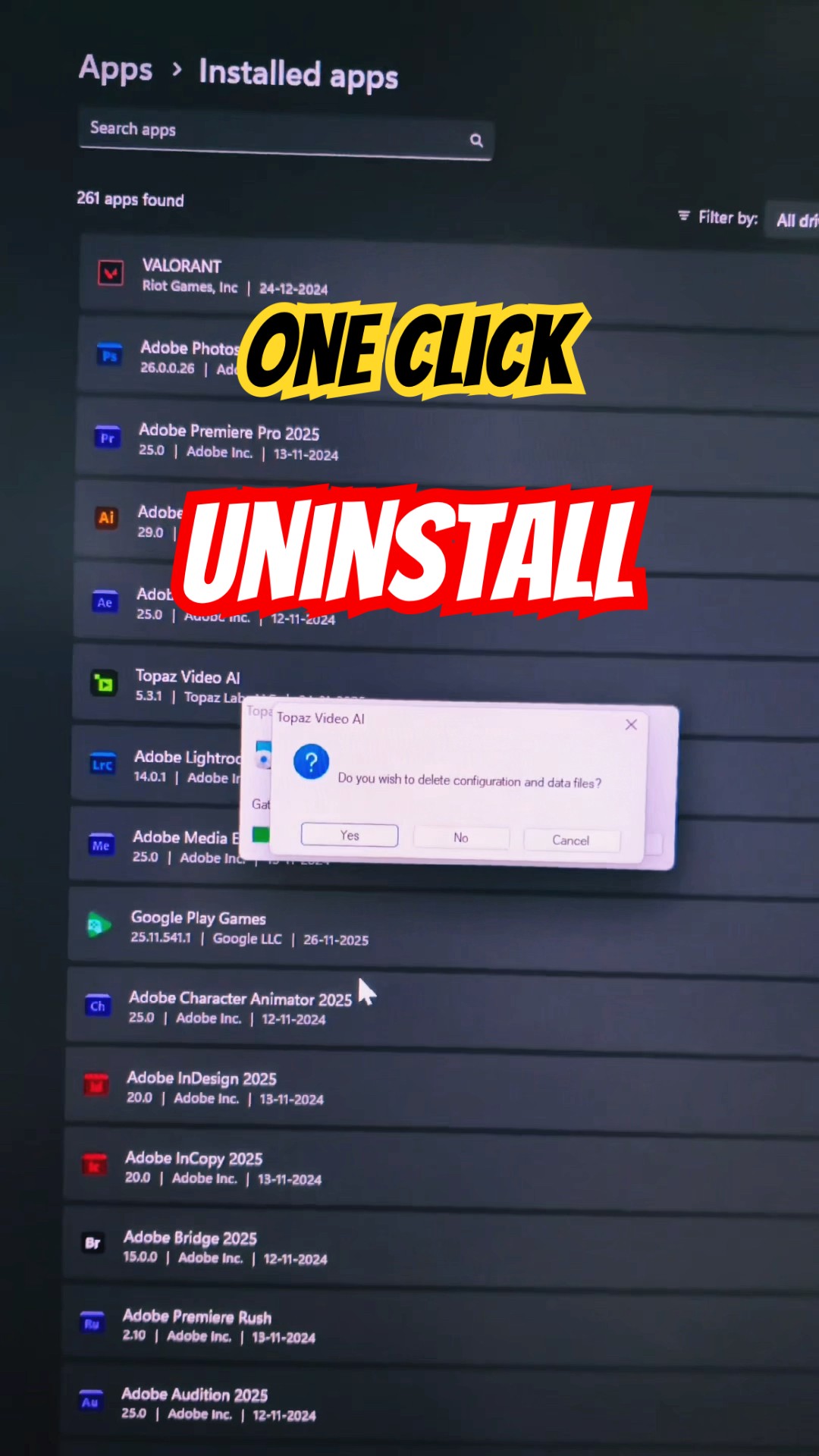
How To Delete Games On IPhone 2026 Step By Step Tutorial YouTube . How To Delete Games On PC Step By Step Guide Uninstall Settings How To Uninstall Games On Pc . How To Delete All Games On IPhone 2026 Step By Step Tutorial YouTube . PC Laptop Se App Uninstall Kaise Kare 2026 How To Delete Software Oardefault . How To Delete Games On PS5 2026 Full Guide YouTube


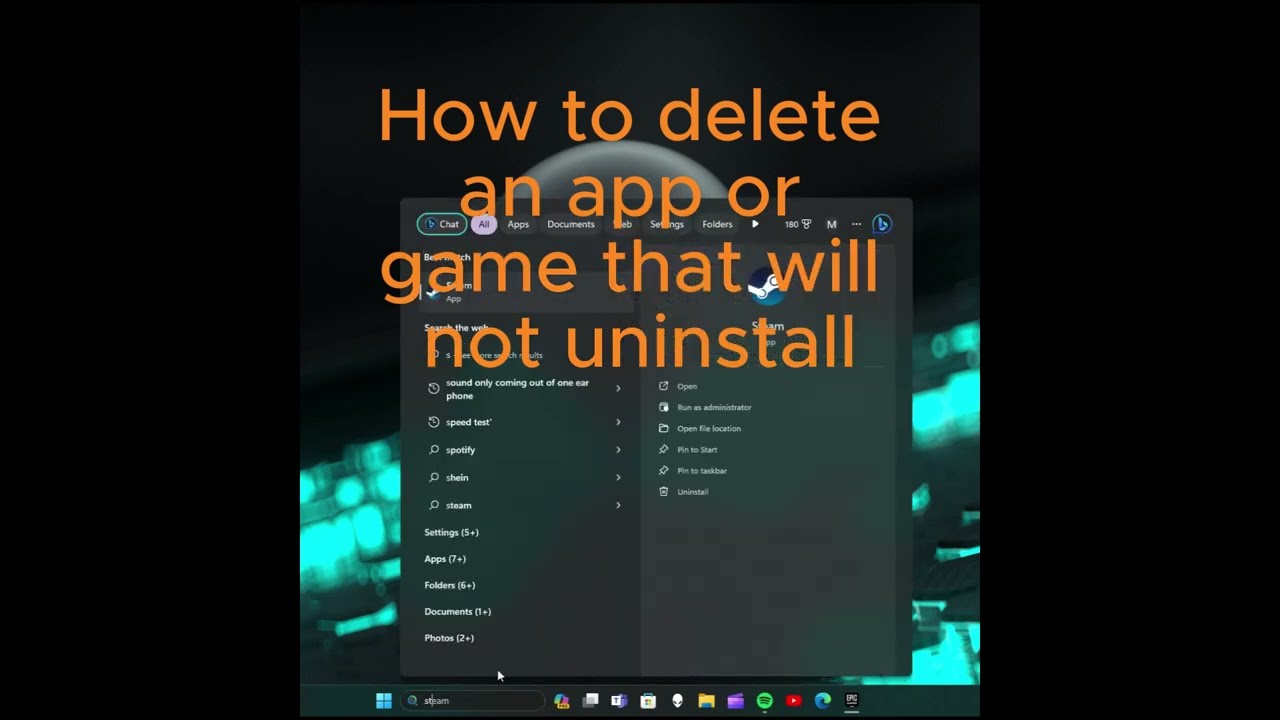
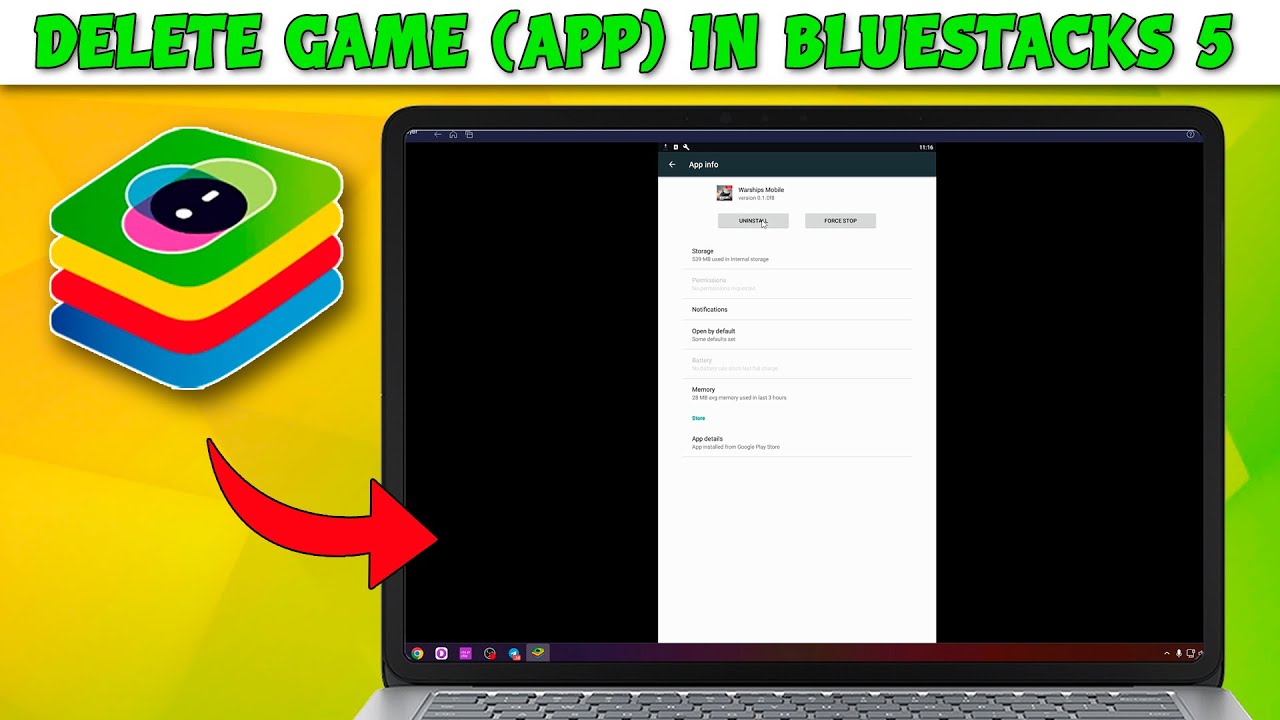

How To Delete Games On Mac Free Up Space In 2026 . How To Completely Delete Game From Steam In Windows YouTube . How To Uninstall A Game Or App That Will NOT Delete PC YouTube . How To Delete A Game Or App In Bluestacks 5 How To Uninstall App In . How To Delete A Game On Your Xbox From The Xbox Phone App Settings


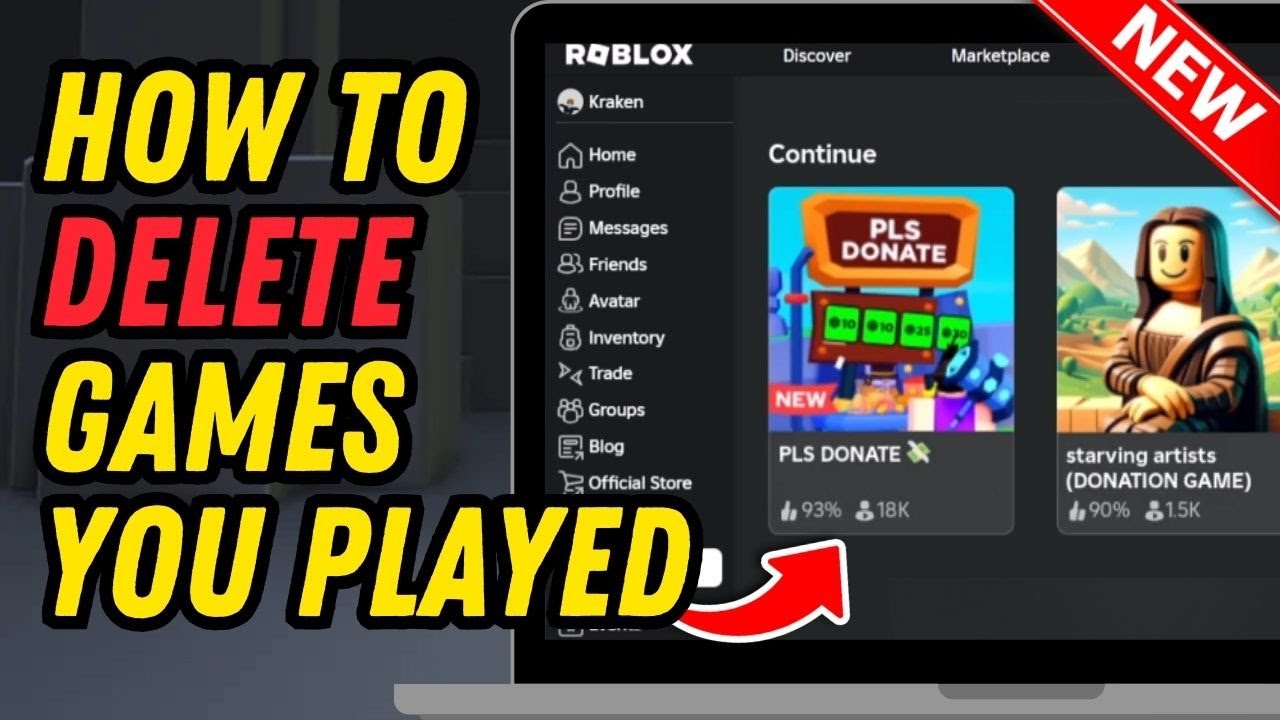


How To Delete Games On IPhone YouTube . How To Delete Games On EA Desktop App YouTube . How To Delete Games You Played On Roblox 2026 UPDATED YouTube . How To Uninstall A Game From The Xbox App On Phone Free Up Storage . How To Remove Game From Epic Library EASY Epic Games Tutorial


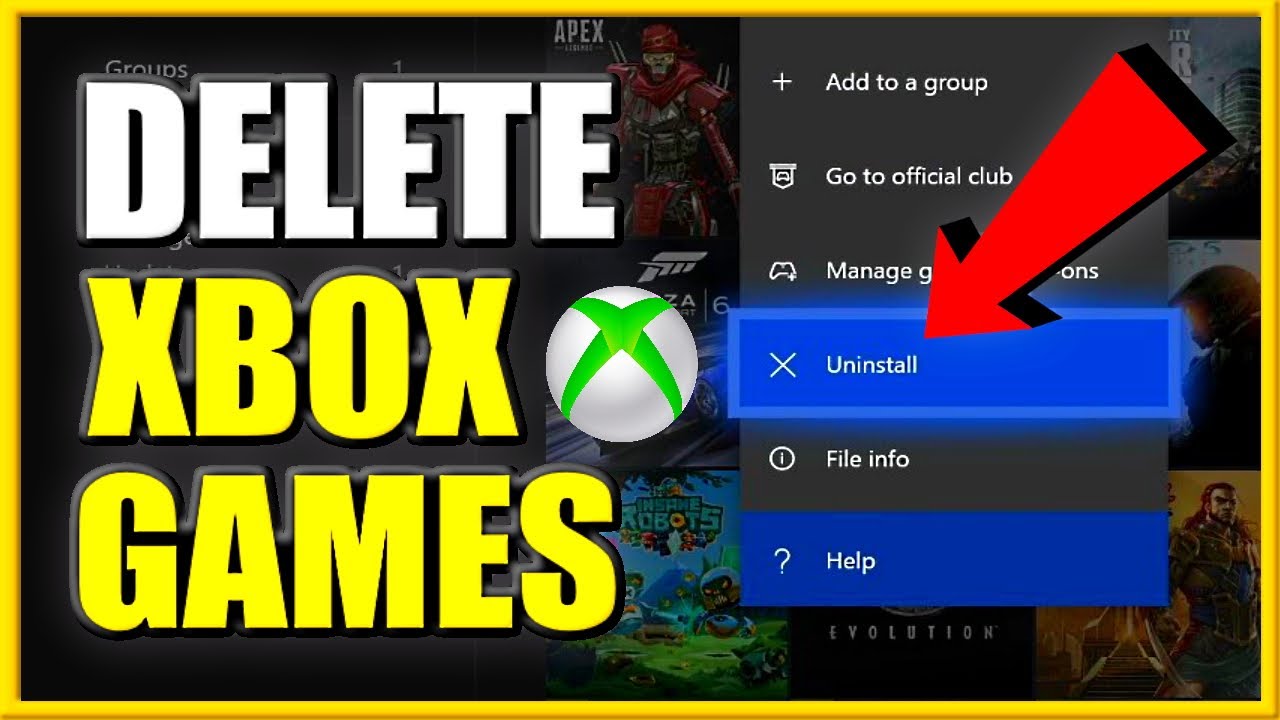
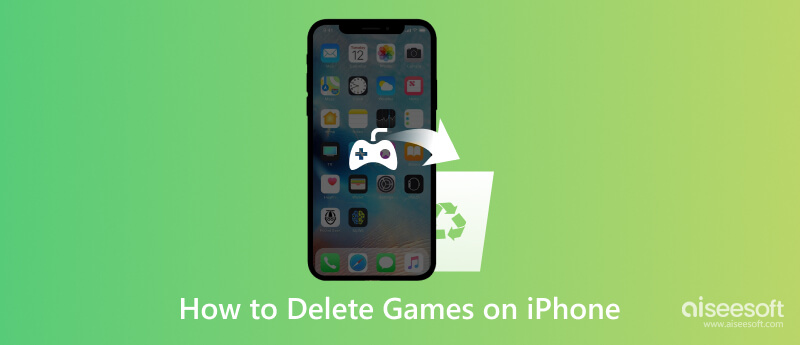

How To Uninstall Delete Games All At Once On STEAM Easy Tutorial . How To Delete Games On Mac Free Up Space In 2026 . How To DELETE GAMES On XBOX ONE Uninstall APPS Easy Method YouTube . Delete Games From IPhone Tricks To Quickly Erase Game Data Cache Delete Games On Iphone . How To Delete Games On Mac Free Up Space In 2026



How To Delete Games On Mac Free Up Space In 2026 Delete Apps On Mac 3.webp. How To Delete Games On Facebook Quick Cleanup Guide Position Is How To Delete Games On Facebook Position Is Everything 1536x864 . How To Delete Roblox Games From Continue 2026 Easy Step By Step Guide . How To Delete Apps From PC Laptop Full Guide YouTube . How To Remove App From Game Center Full Guide YouTube




How To Permanently Remove Game From Steam Account Easy Guide YouTube . How To Delete Games On PS5 Using PS App On Your Phone Easy Guide . How To Delete An App A Parent S Guide To Managing Kids Devices How To Delete An App . How To Remove Linked Games From Facebook How To Remove Apps Games . How To Remove Games From Google Play Games Updated Tutorial YouTube